
Key terms
Chip builds five kinds of thing. You never have to name them in a request, but knowing them makes the result easy to read & easy to ask about.
| Term | What it is | Where you find it |
|---|---|---|
| Space | The home for one use case: the tables, views, automations & documents that belong together | Spaces in the left navigation |
| Table | Your data, with typed fields | Inside its space, usually through a view |
| View | The screen people open, over one or more tables | Its own address: the link Chip gives you at the end of a build |
| Automation | Something that runs on its own: a scheduled digest, an alert, an extraction. On screen it is called a pipeline | Inside its space & under Pipelines |
| Document | What Chip writes down about a build, and the files you give Chip to read | The Files list on the space page & under Documents |
| Synced table | A table Waypoint keeps in step with a connected system | Inside your workspace, once an administrator has connected the system |
| Blueprint | A complete build you can start with one click | The right-hand side of the Build screen |
| Draft | An automation Chip has built but not switched on | The automation's own page & the pipeline editor |
| Plan | What Chip shows you before it builds, with a button to confirm | The card in the Build conversation, before anything is created |
| Policy | An automation that labels rows as they arrive | Under Pipelines, with the rest |
Space
A space is one self-contained use case: renewals, escalations, candidate tracking. Everything Chip creates belongs to exactly one space.
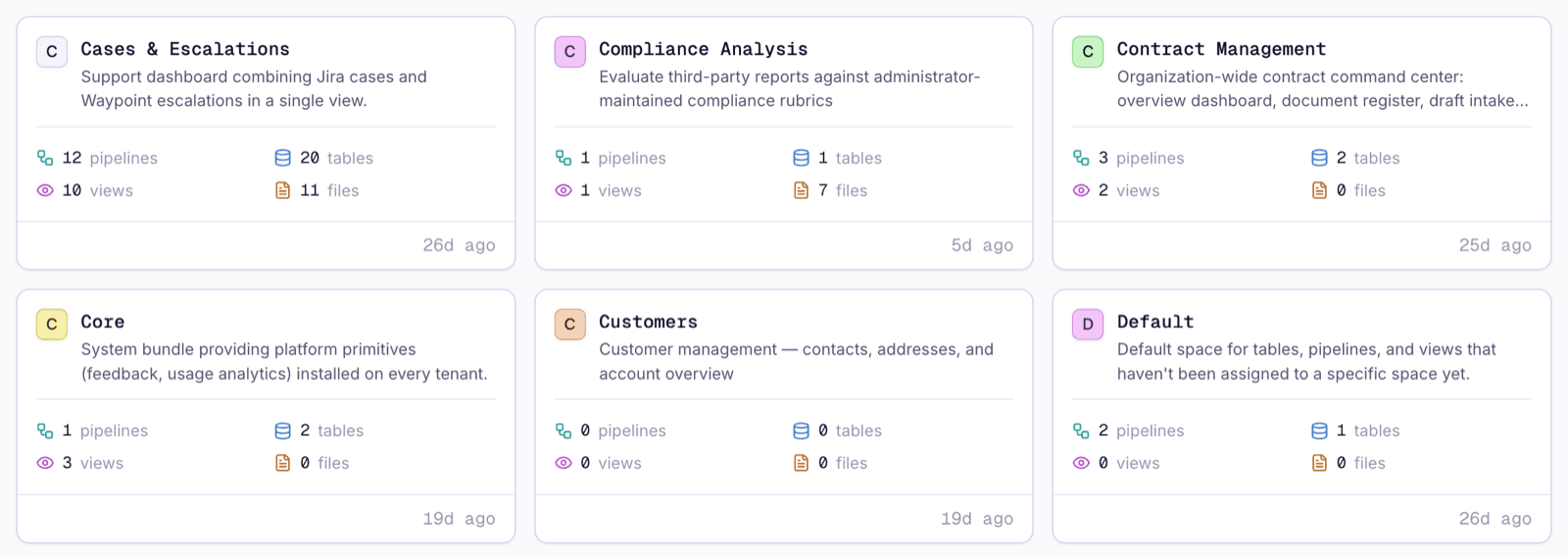
Chip picks or creates the space as part of the build & tells you which one it used. If you want the work in a particular space, or in a new one, say so in your request.
Table
A table is your data with real types. A date field is a date, so "renewing in the next 30 days" is a question you can ask. A status field with a fixed set of values is what lets a kanban group rows into columns & a list show a coloured badge.
The one decision worth getting right at the start is what one row means. One candidate, or one application? One contract, or one renewal? Everything else about a table is cheap to change later. This is not. The getting-started guide shows Chip asking exactly that question.
View
A view is what your team opens. Chip chooses the kind of view from the question you want answered.
| You want to know | You get |
|---|---|
| Which of these need attention, sorted by date | A list |
| What stage each one is in, with cards you drag between stages | A kanban |
| What is happening on which day | A calendar |
| How we are doing overall | A dashboard of numbers & charts |
| The same data sliced by different dimensions | An explorer: one chart whose grouping the reader can switch |
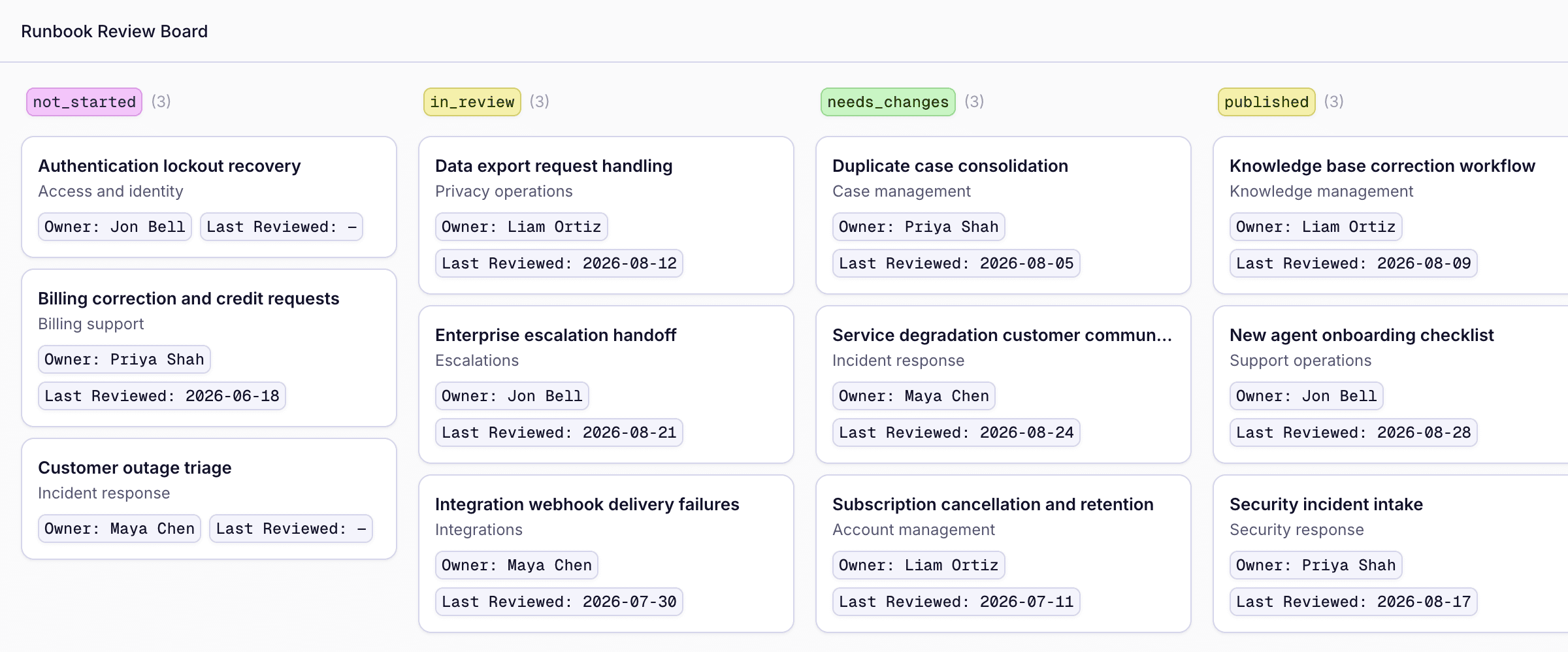
Every view is served at its own address. Send that link to a colleague & they open the view itself.
Automation
An automation runs without anyone opening anything: every Monday at 09:00, when a row is added, or when you press a button. It can post to Slack, send email, update a record in another system or write into your tables. On screen it is called a pipeline, & the list of them lives under Pipelines.
Chip builds every automation as a draft. Each step carries a one-line explanation of why it is there, so you can read what an automation does without opening its settings.
Document
Chip writes three documents for every space it builds: the intent (what you asked for & why), the overview (what is in the space & what was left out) & the plan (what was built, how it was checked & what was deferred). They are the fastest way for a colleague to understand a space they did not build.
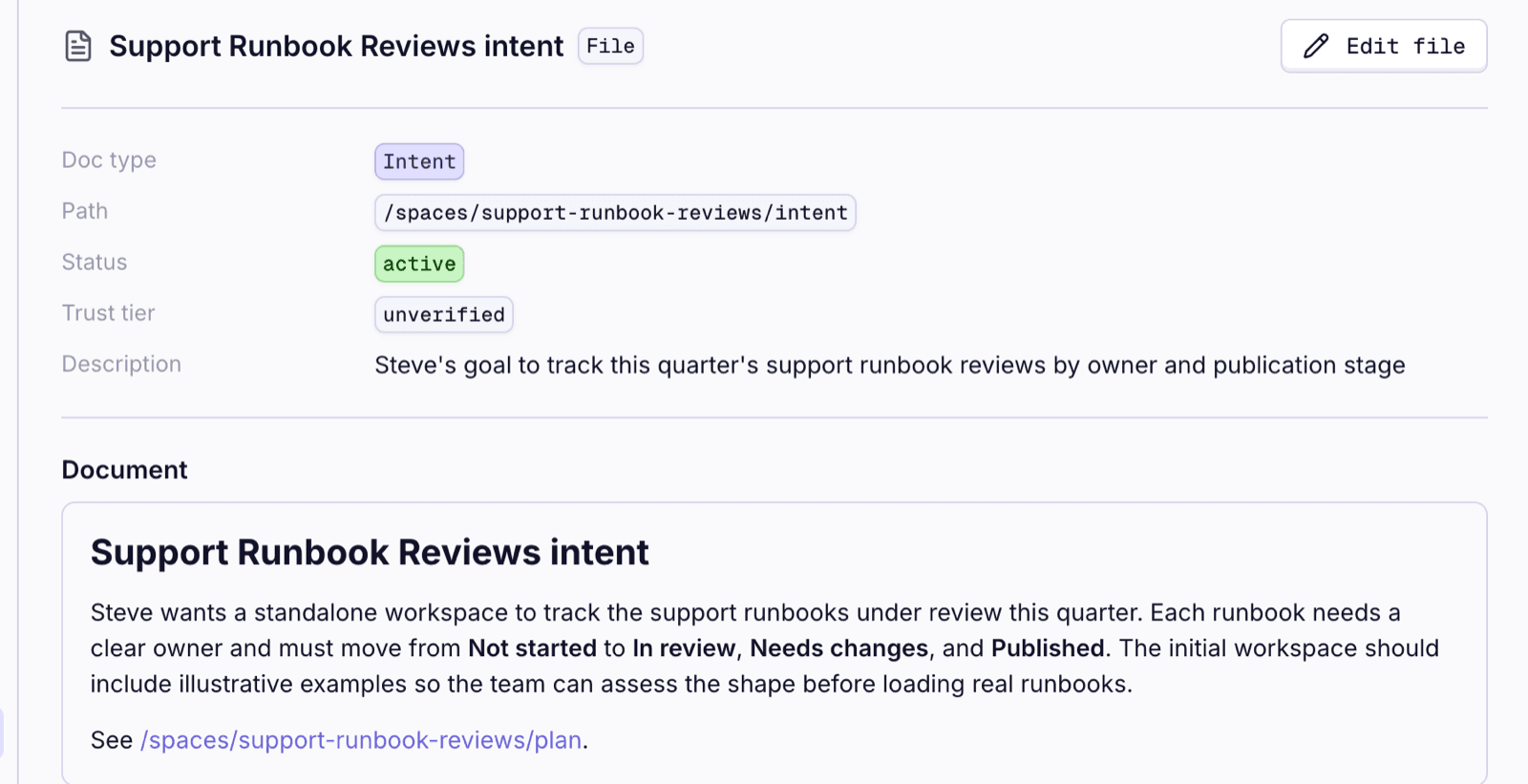
Files you attach are handled two ways. CSV, JSON & Markdown are read as data & become rows. A PDF is filed as a document & read, so the fields Chip extracts from it land in a table of their own.
Synced table
Some tables in your workspace are kept in step with a connected system: your ticketing system, your CRM, your issue tracker. Chip reads them, charts them & drives automations from them; the system that owns the records stays the place you edit them. Connecting is an administrator's job & it happens once.
Blueprint
The Build screen offers a few complete builds you can start with one click: a recruiting tracker, a spreadsheet turned into a real table, a weekly renewals digest, a contract intake. Each is a whole space, ready to use. The getting-started guide types a request instead, because that is what you will do the second time.
Draft
Every automation Chip builds starts as a draft. A draft never runs. When you are ready, ask Chip to activate it, or open the automation, choose Edit pipeline & press Activate in the editor's toolbar.

Plan
Before Chip builds, it shows you what it is about to do: what it will create, what will run & when, what it might affect, with a button to confirm. Nothing is created until you press it. The getting-started guide walks through one.
Policy
A policy is an automation that labels rows as they arrive, so a list or a kanban can group by the label. Unlike other automations, a policy is active as soon as Chip creates it.
The order of a build
Chip builds in dependency order: the space, then the tables, then the automations, then the views. Views come last because each one is checked against a real table before it is saved.
See it used
- Getting started with Chip Build: one build, every term in its place.
- Integrations: where synced tables come from.
- Which labeling policy is getting it wrong: a policy & an explorer.
- Contract renewal alerts: an automation on a schedule.
- A recruiting tracker from a spreadsheet: a space with a table, a kanban & a list.